
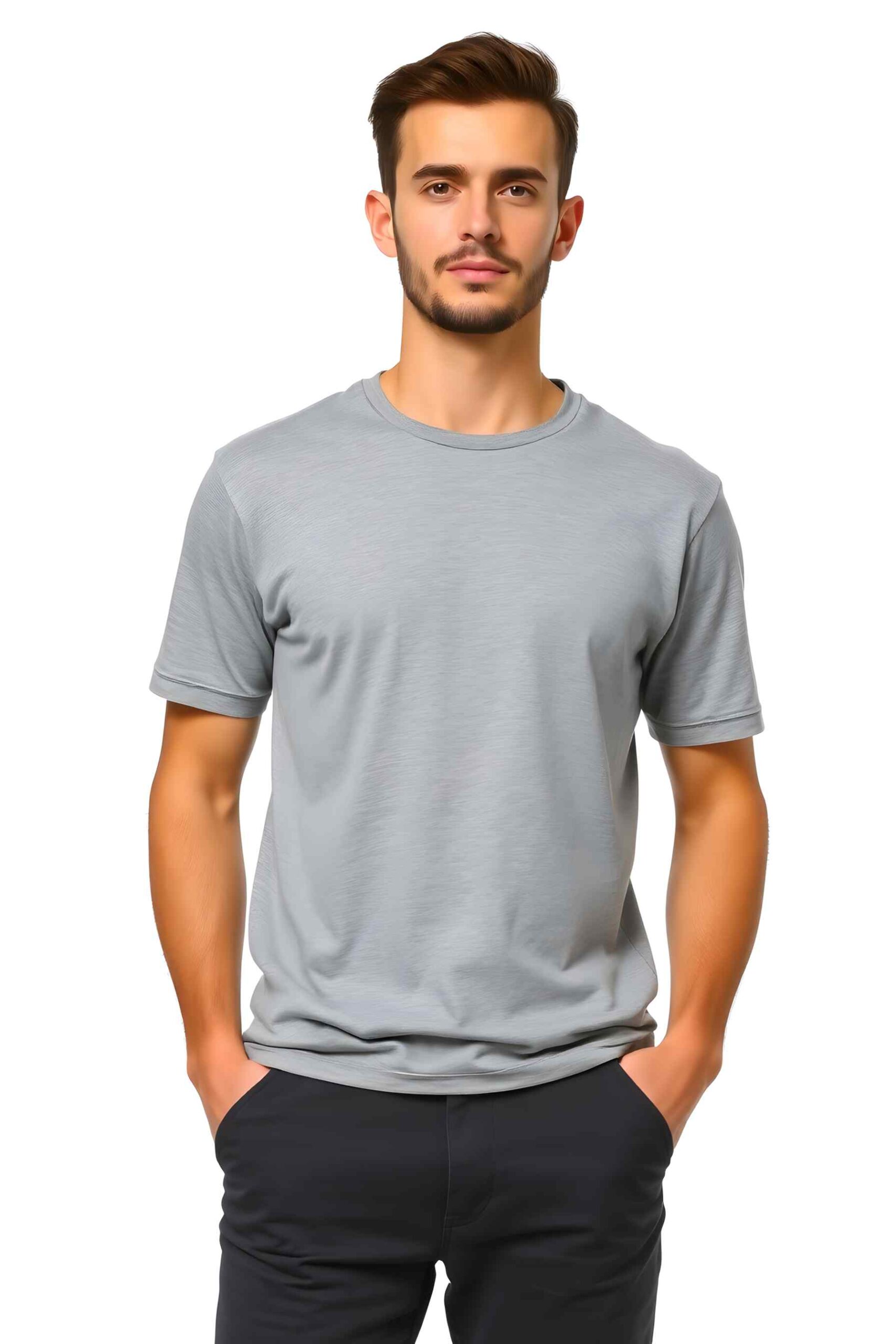
💡 Drag the shape to move it, drag a corner handle to scale, and drag the top handle to rotate — with your mouse or your finger.
🎨 Design Studio
Click or drag & drop to use your own mockup image
PNG, JPG (Max 8MB)
Click to upload or drag & drop
PNG, JPG, SVG (Max 5MB)
Your Images:
100%
Best for images with a plain, solid-colored background.
Your Text Elements:
24px
100%
0px
1.2x
⭐ Star
❤️ Heart
⚪ Circle
⬛ Square
🔺 Triangle
💎 Diamond
➡️ Arrow R
⬅️ Arrow L
⬆️ Arrow Up
⬇️ Arrow Dn
💬 Speech
⚡ Lightning
✨ Sparkle
☀️ Sun
🌙 Moon
🚩 Flag
👑 Crown
✔️ Check
❌ Cross
🎵 Music
📷 Camera
🎁 Gift
👍 Thumbs Up
🔥 Fire
💯 100
🏆 Trophy
🔔 Bell
📌 Pin
✉️ Mail
🌟 Star Glow
Your Elements:
100%
✂️ Crop Image
Drag inside the box to move the crop area, drag the bottom-right handle to resize it.
📋 Quick Guide
- Click / tap on any image, text, or element to select it
- Drag the shape itself to move a selected item
- Drag a corner handle to scale a selected item (mouse or finger)
- Drag the top handle to rotate a selected item
- Press Enter in the text box to start a new line
- Alignment buttons set left / center / right for multi-line text
- Transform lets you flip or skew an image or text horizontally/vertically
- Crop an image with the ✂️ Crop Image button
- Remove Background works best on plain, solid-colored backgrounds
- Double-click text to edit its content in place
- Upload your own mockup at the top of Design Studio, any time
- Forward/Backward buttons change layer order

